Guide
What Is WebP and How Do You Convert It to JPG?
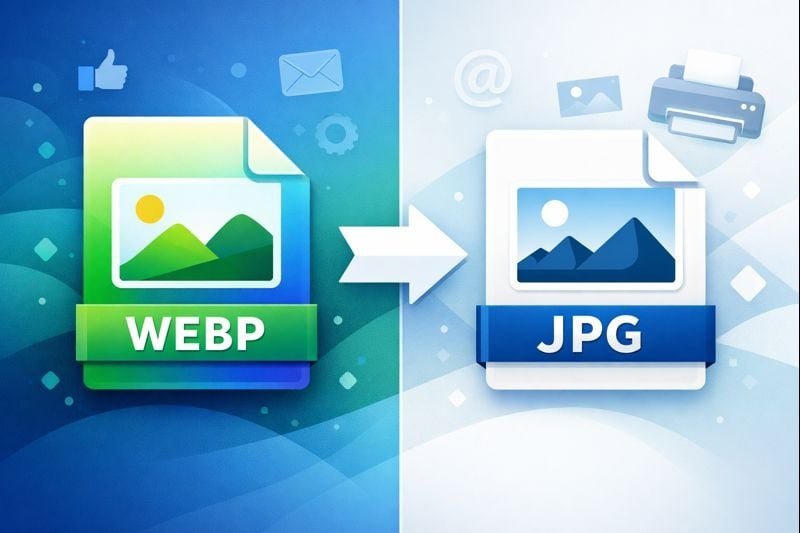
You downloaded an image from a website, or saved a photo from somewhere online, and the file ends in .webp. convert web top to jpg Now it won't open in half your apps. Your email client rejects it. Your photo editor doesn't recognise it. Sound familiar?
WebP is Google's image format, designed for the web. It's actually excellent for what it does but it's a format built for browsers, not for everyday use. Once you try to take a WebP image off a website and use it somewhere else, the compatibility problems start immediately.
The fix is simple: convert it to JPG. Here's everything you need to know.
What Is a WebP File?
WebP (pronounced "weppy") is an image format created by Google and released in 2010. It was designed specifically to make web pages load faster by producing smaller file sizes than JPG or PNG without visible quality loss.
Most major browsers — Chrome, Edge, Firefox, Safari can display WebP images natively. That's why websites use them. From a developer's perspective, they're great. From a user's perspective, they're a nuisance the moment you try to do anything with them outside a browser.
Common situations where WebP causes problems:
Opening the file in Windows Photos or Preview on Mac (older OS versions)
Uploading to platforms that don't accept WebP (some social media, CMS tools, email clients)
Editing in software like older versions of Photoshop or GIMP
Attaching to emails on certain clients
Printing from standard photo printing services
WebP vs JPG: What's the Actual Difference?
FeatureWebPJPGFile SizeSmaller (20–35% vs JPG)LargerImage QualityComparable at same sizeGoodTransparencySupportedNot supportedBrowser SupportAll modern browsersUniversalApp CompatibilityLimitedUniversalSocial Media UploadHit and missAlways works
The short version: WebP wins on file size and is great in a browser. JPG wins on compatibility everywhere else. If you need to use an image outside a website, JPG is the right format.
How to Convert WebP to JPG Free — No Software Needed
The fastest method is using SnapConvert — it runs entirely in your browser. Your image never leaves your device.
Step 1: Open SnapConvert
Go to snapconvert.app. No account, no signup, no installation.
Step 2: Upload Your WebP File
Drag your .webp file onto the converter, or click to browse your files. The conversion happens locally in your browser using your device's processing power.
Step 3: Choose JPG as the Output Format
Select JPG from the format options and click Convert.
Step 4: Download Your JPG
Your converted JPG downloads in seconds. Full quality, no watermarks, completely free.
Privacy note: Because SnapConvert processes everything locally, your image is never uploaded to a server. This matters if you're converting screenshots, personal photos, or anything sensitive.
Other Ways to Convert WebP to JPG
If you'd rather not use a browser tool, here are the main alternatives.
On Windows (Paint)
Open the .webp file in Microsoft Paint (it supports WebP in Windows 11). Go to File → Save As → JPEG picture. Done. This is the quickest desktop method if you're already on Windows.
On Mac (Preview)
Open the WebP file in Preview (it works natively on macOS Ventura and later). Go to File → Export, choose JPEG from the Format dropdown, and save.
On iPhone or Android
Most phones can't open WebP files natively in the camera roll. The easiest route is opening the image in Chrome or Safari, long-pressing it, and saving it — though this sometimes saves it as WebP anyway. A browser converter like SnapConvert is usually the simpler solution on mobile.
Using Photoshop
Photoshop CC 2021 and later supports WebP natively. Open the file, then go to File → Export → Export As and choose JPEG.
Does Converting WebP to JPG Lose Quality?
Technically, yes — but in practice you won't notice.
Both WebP and JPG use lossy compression. When you convert between them, you're re-compressing an already-compressed file, which introduces a small amount of additional quality loss. At conversion quality settings of 85% or above, this difference is not visible to the human eye.
Where quality can suffer is with converters that default to low output quality (60% or below). SnapConvert converts at high quality by default, so the result will look identical to the original for any normal viewing purpose.
Why Do Websites Use WebP Instead of JPG?
Page speed is a Google ranking factor, and smaller images load faster. A WebP image is typically 20–35% smaller than an equivalent JPG at the same visual quality. For a website loading dozens of images per page, that adds up to a significant difference in load time.
Google introduced WebP specifically for this reason, and most web development frameworks and content delivery systems now default to serving WebP where browsers support it. That's why when you save an image from a website today, it often comes back as WebP even if the original source was a JPG.
Frequently Asked Questions
Why can't I open my WebP file?
WebP isn't supported by all applications, particularly older software or tools not updated for web image formats. The simplest fix is to convert it to JPG first, which opens in everything.
Is WebP better than JPG?
For websites, yes — smaller files and good quality. For general use, sharing, printing, or editing, JPG is more practical because it works everywhere.
Can I convert WebP to PNG instead of JPG?
Yes. If you need transparency (a clear background) in your image, PNG is the right choice. SnapConvert's main converter supports conversion to PNG as well.
Will converting WebP to JPG change the image size (dimensions)?
No — conversion only changes the file format and compression. The pixel dimensions stay the same unless you specifically resize during export.
Can I batch convert multiple WebP files?
SnapConvert currently converts one file at a time. For bulk conversion of many files, Photoshop's batch export or a desktop tool like XnConvert handles multiple files at once.
More Free Image Converters
If you work with other formats, SnapConvert has you covered:
HEIC to JPG Converter — convert iPhone photos to JPG
AVIF to JPG Converter — convert next-gen web images to JPG
SVG to PNG Converter — convert vector graphics to PNG
All Image Converters — WebP, BMP, TIFF, and more
⚡ Try SnapConvert Free
Convert HEIC, AVIF, SVG and any image format — instantly in your browser. No upload, no signup.
Convert Images Free →